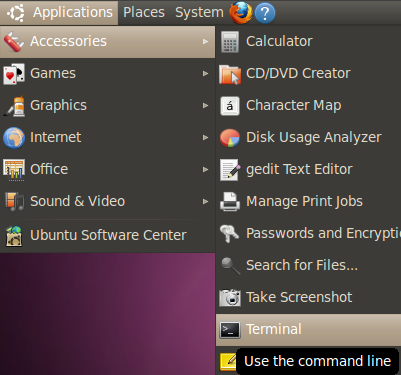
In Ubuntu (Gnome), it's in Applications > Accessories > Terminal
Kubuntu

In Kubuntu, click on the blue KMenu icon and just start typing the word terminal, then click on Konsole
Xubuntu

In Xubuntu (XFCE), it's in Applications > Accessories > Terminal
Benefits of the Command-Line/Terminal
A lot of new users are afraid of using the command-line (I was one of them when I first started using Linux). For some reason, the idea of typing in commands instead of pointing and clicking on buttons with a mouse seems archaic and scary to people who haven't used the command-line since MS-DOS in the 1980s. I'm not advocating we use the command-line for everything, but there are a couple of benefits to the command-line:Sometimes it's just faster. If I wanted to install Thunderbird graphically, it'd take me at least five clicks (and a lot of waiting) to do. If I wanted to install it via the command-line, it would take only one command:
sudo apt-get install thunderbird
Of course, you would have to know what the command is—it isn't easily discoverable, but it is useful. More importantly, it makes it easier for others to help you. If you're on the Ubuntu Forums (or any kind of online help venue), it's a lot easier for someone to say, Here, paste this command in the terminal than to describe in detail what you should click on, and then what to click on in the subsequent dialogue. In fact, you don't even need to type at all. If someone gives you a command to type in, just copy it and paste it into the terminal. Terminal commands also give more helpful feedback—usually a text error message if the command fails. If you have errors in the graphical user interface, you may just see something "disappear" or "hang" or "freeze."
Lastly, the terminal is almost universal across Linux distributions and is definitely universal across different flavors of Ubuntu. The instructions for installing a program graphically in Ubuntu are not the same as for doing the same in Kubuntu, but they are the same in the terminal for Ubuntu, Xubuntu, Kubuntu, and Edubuntu.
If you're thinking, This is ridiculous. I shouldn't have to use the command-line at all, then Ubuntu may not be the Linux distribution you want to install. You have several options:
- You can buy Linux preinstalled
- You can have someone else install and configure it for you
- You can not use Linux at all
Some helpful commands to know
startx - If you happen to end up at a command-prompt without any graphics, you can log in and try typing this command to get back to the graphical (or "x") system. Theoretically this shouldn't happen, of course, since Ubuntu has implemented "bulletproof X," but it's a good thing to know anyway. sudo dpkg-reconfigure xserver-xorg - If you're having screen resolution problems that can't be solved via point-and-click, you can try this command. It'll walk you through setting up your video settings again. If you don't know the answers to certain questions, just go with the defaults for those questions.xkill - Kills a misbehaving application. Once this command is run, the mouse cursor will become a skull and crossbones. Any window you click on after that will close immediately. Kubuntu has a keyboard shortcut built in for this already: Control-Alt-Escape.
killall gnome-panel - Refreshes the Gnome panel. Particularly helpful if you've added new menu items that don't appear or have changed icons. The Kubuntu equivalent is killall kicker.
top - A quick way to see what applications are using the most resources at any given time.
man - Gives you the manual for an application. For example, if you want to learn how to use Wine, you would type man wine.
rm - Deletes a file. For example, if you had a file called putmeinthetrash, you could type in rm putme* to delete it.
ls - Lists the files and folders in a directory.
cd - Changes directories (that's right--just as it does in MS-DOS).
You can find out more here about using the terminal:
https://help.ubuntu.com/community/UsingTheTerminal

No comments:
Post a Comment