Like Mac OS X, Ubuntu includes by default a privilege escalation system that invokes sudo, which allows certain users (in the admin group) to operate as limited-privileged users for almost all tasks and to temporarily escalate (after a password authentication) to administrative privileges for specific tasks. For more details about sudo, check out the Ubuntu Wiki page on the subject.
Sometimes users want to modify system files and thus need “root” (or full administrative) privileges to make changes to those files. This tutorial will show you how to create an application launcher to “browse as root.”

Right-click on an empty spot on the panel and select Add to Panel

Select Custom Application Launcher and then click Add

The type should be Application and the command should be

When you’re done filling in the fields and (optionally) selecting an icon for the launcher, click OK

Now when you click the launcher icon, you’ll be prompted for a password…

and you can browse as root and make changes to system files, all within your otherwise-unprivileged user session.
Sometimes users want to modify system files and thus need “root” (or full administrative) privileges to make changes to those files. This tutorial will show you how to create an application launcher to “browse as root.”

Right-click on an empty spot on the panel and select Add to Panel

Select Custom Application Launcher and then click Add
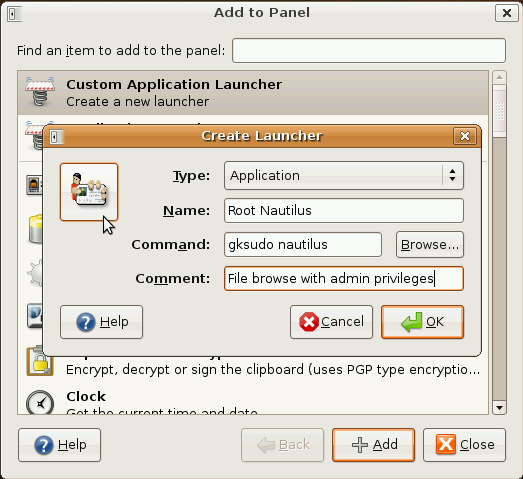
The type should be Application and the command should be
gksudo nautilus
The rest of the fields and the icon can be whatever you want them to be. 
When you’re done filling in the fields and (optionally) selecting an icon for the launcher, click OK
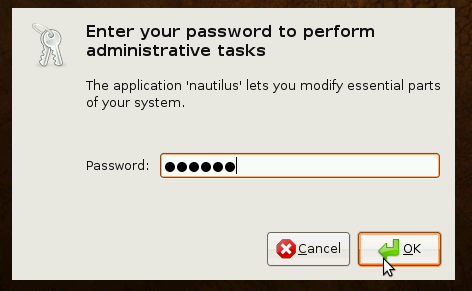
Now when you click the launcher icon, you’ll be prompted for a password…

and you can browse as root and make changes to system files, all within your otherwise-unprivileged user session.

No comments:
Post a Comment