Go to the Ubuntu Minimal CD Image page to get the minimal CD.
This guide will help you burn the .iso to CD
Note: a high-speed wired internet connection is recommended for a minimal installation.
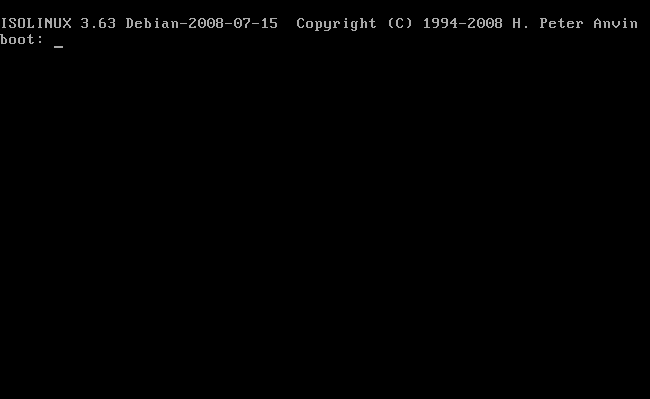
When you boot up, you'll get a boot prompt. Just hit Enter there.

Select Command-line install


After a short wait, you'll be presented with a series of easy questions. Use Tab to move between options and Enter to select the option you want to proceed with.

Ubuntu gives you the option to have your keyboard autodetected. I would advise against this. It's a little involved with a lot of guesswork based on what letters you type on your keyboard. It's easier to just select what keyboard layout you have.


More easy questions. If you don't know the answer to certain questions, just go with the default.


Still more easy questions.

Partitioning isn't as scary as you might think it is. If you want to take up the whole disk with Ubuntu and erase everything you have on your drive now, choose the Guided - use entire disk option. If you want to save what you have installed and carve out some space for Ubuntu, choose Manual. You'll have to resize your current hard drive partition and then create a new partition for Ubuntu.
The rest of this tutorial assumes you're using your entire disk. If you need help with partitioning, post a thread on the Ubuntu Forums.


More easy questions. Keep going.


Lots of questions. Just as before, most of the questions are easy to answer. If a question is hard or confusing to you, just go with the default answer.


After you boot up without the CD, log in and you should be at a prompt that looks like username@computername:~$. So in this example, the prompt looks like jessica@ubuntu:~$.
At the prompt, type these three commands (unfortunately, you won't be able to copy and paste into the fullscreen terminal, so please be careful to type exactly what you see here; be mindful of the spaces and spelling):
sudo apt-get update
sudo apt-get install xorg xterm gdm icewm menu firefox gksu synaptic --no-install-recommends
sudo service gdm start
sudo apt-get install xorg xterm gdm icewm menu firefox gksu synaptic --no-install-recommends
sudo service gdm start


You should get to a graphical login screen. After you log in, you should then see a very basic menu with Firefox and the terminal.

After this minimal install (using Ubuntu 10.04 as an example for these screenshots), the total installation size is a little under 1 GB.
For the older version of this page, go here.
Variations
If you think GDM (the Gnome Display Manager that manages the login screen) and Firefox are too heavy for your hard drive size, your processor, or your RAM; and/or you'd prefer to do your own package management through the terminal instead of Synaptic Package Manager; you can use this instead for the second command:
sudo apt-get install xorg xterm wdm icewm menu epiphany-browser --no-install-recommends
You would then have to use this for the fourth command: sudo service wdm start
Some people prefer Fluxbox, Openbox, PekWM, or Windowmaker to IceWM. If you know how to configure those window managers, you can obviously substitute those in for IceWM in the second command. You can learn more about different window managers at http://xwinman.org

No comments:
Post a Comment